
The entire journey of taking business decisions often begins at the step of transformation. The raw data has to be transformed before it is loaded into the next layers for either reporting or further analysis. We can either go by the way of loading data into the database and then doing the transformation, or transform and then loading, the difference between ETL and ELT. This post however, does not delves into the difference between ETL and ELT rather is an overview on the different transformation that ADF has to offer.
In ADF, there are 10 categories of transformation activities that can be used. A transformation activity executes in the computing environment, such as Azure data bricks or HDInsights. These categories have further sub-categories.
- Move and Transform
- Copy Data
- Data Flow
- Azure Data Explorer
- Azure Data Explorer Command
- Azure Function
- Azure Function
- Batch Service
- Custom
- Databricks
- Notebook
- Jar
- Python
- Data lake Analytics
- U-Sql
- General
- Append Variable
- Delete
- Execute Pipeline
- Execute SSIS Package
- Get Metadata
- Lookup
- Stored Procedure
- Set Variable
- Validation
- Web
- Web Hook
- Wait
- HDInsight
- Hive
- Map Reduce
- Pig
- Spark
- Streaming
- Iteration & Conditionals
- Filter
- ForEach
- If Condition
- Switch
- Until
- Machine Learning
- Machine learning batch execution
- Machine learning update resource
- Machine learning execute pipeline
MOVE AND TRANSFORM
This category of transformation activity involves two activities, copy and data flow. Copy activity is the most basic activity you will be using in your journey with the Azure Data Factory or for that matter any of the ETL/ELT tools. Data flow activity is used to transform and move data via the mapping data flow.
Copy Activity
The copy activity is often used to copy the data from either on-premise or cloud to a location in the cloud, which is then used for further analysis. The copy activity is executed on an integration run time and for the different scenarios of the copy, there are different integration runtimes that Azure offers. We can cover the integration run times in a different blogpost all together, but for the beginning; there are three types of integration run times.
-
- Azure Integration Run Time – When we are copying data between two data stores that are publicly accessible through the internet on IP, we use the Azure Integration Run Time. It is secure, reliable, scalable and globally available.
- Self-Hosted Integration Run Time – When we are copying data to and from data stores that are located on-premise or in a network with access control( for instance, an azure private network), we go for the self hosted integration run time/
- SSIS Integration Run Time- When you are moving your SSIS packages into the Azure, it can directly and more so easily be done using the SSIS integration run time. With the coming of SSIS integration run time, you can deploy some of the familiar tools which have Azure enabled in them, such as SQL Server Data tools(SSDT), SQL Server Management Studio.
-
- When you are using the copy activity, the most basic questions are –
-
- From where do you want to copy?
- Where will it be moved via the copy activity?
When using the copy activity in ADF, following are the details that need to be filled –

- General – The general tab is where you mention the name of the copy activity, usually a description is required in case working with the production environment. The timeout specifies the time till which the copy activity will try to copy. So, in case you mention the timeout to be 1 minute, the copy activity if takes more than 1 minute, will fail. Retry defines the number of times the copy activity has to retry the copy task. It is in the combination of both timeout and retry, that we can increase the timeline for running a pipeline. The secret output and secret input are used when we do not want the output and input of an activity to be captured while logging.
- Source – In ADF, each of the copy activity requires creation of a dataset. There has to be a source dataset and a sink dataset. In this tab, you need to fill the details of the source dataset.
- Sink – This tab requires you to fill in the details of the sink or the target dataset.
- Mapping – ADF handles mapping automatically, however, you also have an option of creating your own mapping. In case of automatic mapping, the source and sink must be entirely in sync. So, if the source has 10 columns the sink must also have 10. One important thing to remember here, is that ADF is case sensitive. So, a column named “abc” must be available in both source and sink. A column like “ABC” will give an error.
- Settings – The data integration unit applies only to the Azure Integration run time and is the measure of the power of a single unit in Azure Data Factory. The allowed data integration unit is between 2 and 256. In case you opt for auto, data factory dynamically applies the optimal DIU setting based on your source and sink pair and data pattern. Degree of parallelism defines the number of threads the copy activity will run for copying from the source to the sink database. Fault tolerance is specially useful in case of production environments, no matter how much we predict the data, there are times it does comes up with its own exceptions. In cases of those, we do not often want our copy activity to fail. For scenarios like these we use the fault tolerance in copy activity. Enabling staging, means that you are not going to move the data from the source to the destination directly, however, will store it in either Azure Blob or data lake.
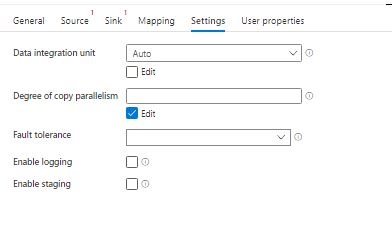
- User Properties – These are similar to the annotations we created earlier, except that we can add them to the pipeline as well. By adding user properties, we can view additional information about activities under the activity run.
THE EXPERIENCE
Most of the times we do not use any one of the activity to perform a operation, it is often a combination of these which decide the flow of the data. For instance, you do not just copy, there are if and else involved, often a lookup activity and then may be calling the stored procedure. In one of the projects that I worked on, we used the lookup activity to fetch the file names that we wanted to get loaded and the result of the lookup was then passed on to a for each activity, within which the copy activity was called.
There is so much itself to be talked about in the copy activity, and then we have more than 15 of these activities. We will be covering them all, exploring the ins and outs of the ADF in posts with tag #ADF.
StayTuned!
Happy Learning 🙂
 Tanubhrt.This.Side
Leave a comment