
Informatica allows you to rank the columns according to a certain condition. But remember, you can either rank then in increasing order or decreasing. It is different from average and maximum functions in such that it allows you to select a range of numbers instead of one. So, like you can find out the top ten of a range instead of just one or two. The mapping of rank transformation looks something like this –

What have I done?? Well simple, I dragged and dropped the source into the mapping designer. Now, I want to calculate the rank of the teams on the basis of wickets fallen. So, I further dragged and dropped the elements into the ranking transformation. Once the drag and drop is done, double click on the RNKTRANS and a dialog box will appear.
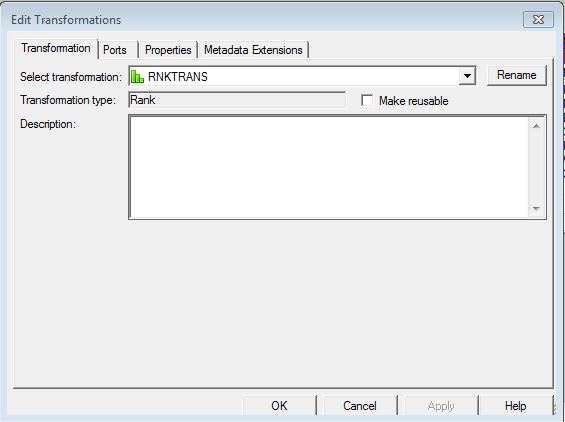
Now, in this dialog box you can actually rename the transformation. By default, Informatica gives the name RNKTRANS, but if you want to change the name of the transformation, simply click on Rename and give the name specified. Now, can you see that Make reusable option. In Informatica, once an object is made reusable it can be called in any mapping or mapplet. The advantage is that in a data integration project there are many processes which may share common data transformation requirements. Deployment of reusable transformation objects in such cases avoids duplication of meta data, hence reducing the development time and provides centralized change control..

Ranking transformation allows you to create local ports and non-aggregate functions. If you want to do so, simply click on the button that has been circled. On clicking you will get a new port and you can set it any way that you like. If you want to remove a port, simply click on the scissor button next to the circled bottom. To copy click on the button with two pages sign and if you want to paste a port, click on the paste button. The last two arrows are to move the ports up and down. So, for example, if I want to bring OversBowled up I will simply click on the port and then keep on clicking the upwards arrow until I bring the port to the position required. In case of any error, the default value gets printed in the session log.
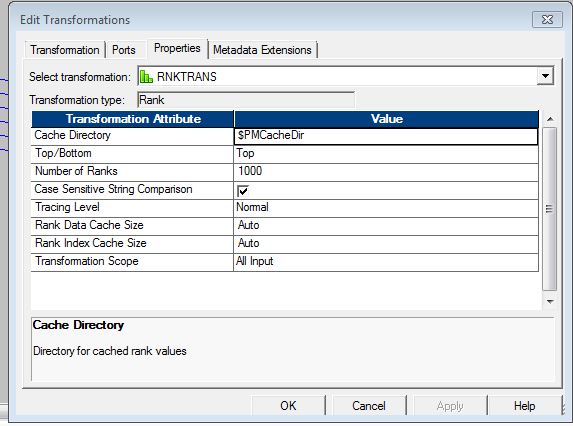
Let us understand the properties of the RNKTRANS.
1. Cache File – The directory specified here is the place where the integration service stores the cache files generated during the rank transformation.
2. Top/Bottom– This tells whether you want to find out the top or the bottom of the data. So, for example do you want to find out the people who sales were the maximum or the ones who made the least number of sales.
3. Number Of Ranks – It simply tells the amount of data you want. Like do you want the details of ten records or that of thousands.
4. Case Sensitive String Comparison – This is required when you are ranking the strings of data. If you check mark this option, while ranking the case of the string will be taken into consideration.
5. Tracing Level – Click Here.
6. Rank Data Cache Size – It is the size in bytes required to store data in the rank cache.
7. Rank Index Cache Size – It is the size in bytes required to store index in the rank cache.
8. Transformation Scope – It defines the scope on which transformation will be applied on the input data. There are two scopes –
- All Input – It applies the transformation on all the incoming input data. When you choose All Input, the PowerCenter drops incoming transaction boundaries. Choose All Input when a row of data depends on all rows in the source.
- Transaction – It applies transformation to all the rows in the transaction. You should select this option when a row of data depends on all rows in the same transaction, but does not depend on rows in other transactions.
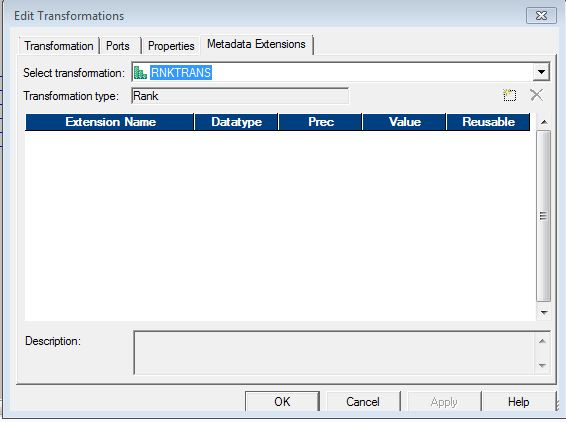
Metadata Extension – When you extend the meta data stored in the repository by associating a repository object, it is called meta data extension. In simple words, what is meta data? It is the data about data. So, if you want to insert some additional data about the meta data, you can do it easily by adding a new port here.
Happy Learning 🙂
 Tanubhrt.This.Side
Leave a comment