
When creating mapping, there are times when you need to generate the ID for every record. In cases like these, you need to make use of sequence transformation.
This transformation allows you to automatically generate a number for the rows in the table.
To be able to use this transformation you need to click on the transformation(Just hover over the various transformations present in the tool. You will find a Sequence Generator Transformation.)

Just click on the transformation and then click on the mapping, you will be able to use the transformation. When you do this, something like this will come —
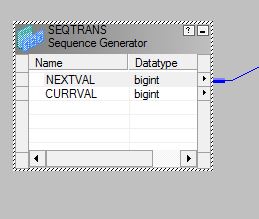
Double click on the SEQTRANS and a dialog box like below will get opened. Now, go to the properties tab and change the current value to the value you want your sequence to start with.

Let us understand the Properties tab.
Start Value –> This is the value your sequence will start once it has reached the end value. So, for example, if the end value is 1000 and start value is 2. On reaching this end value i.e. once 1000 rows have finished, your next row will have the sequence starting with 2.
Increment By –> This is the digit you want your value to get incremented by. Like, if the increment value is 5, the values will get incremented in steps of 5.
End Value –> This is the value your sequence gets stop and if the start value is set, it will get started from there.
Current Value –> This is the value you want your sequence to start with.
Cycle –> When you check on this, it simply means that the values will be regenerated once the end value has reached.
Number of cached values –> When generating 10 or 50 or for say 1000 sequences it is easy. But, big companies often need to generate millions of sequence. Not having cached values increases the time for the query to execute. Because every time the value needs to be generated the mapping has to be called. On giving the cached values, the number of cached values get stored and are then fetched directly.
Happy Learning 🙂
 Tanubhrt.This.Side
Leave a comment